Claude Design • Break the model's biases to build accessibility in from the start
Claude Design isn't production-ready out of the box. If you want quality output, you need to feed it a proper design system before asking for anything visual, then lock in accessibility basics so it stops butchering your landing pages.
Step 1: Give Claude Your Design System
Before writing a single design prompt, list out what you already have. Claude works from constraints, not vibes, and vague prompts consistently produce generic, template-like output.
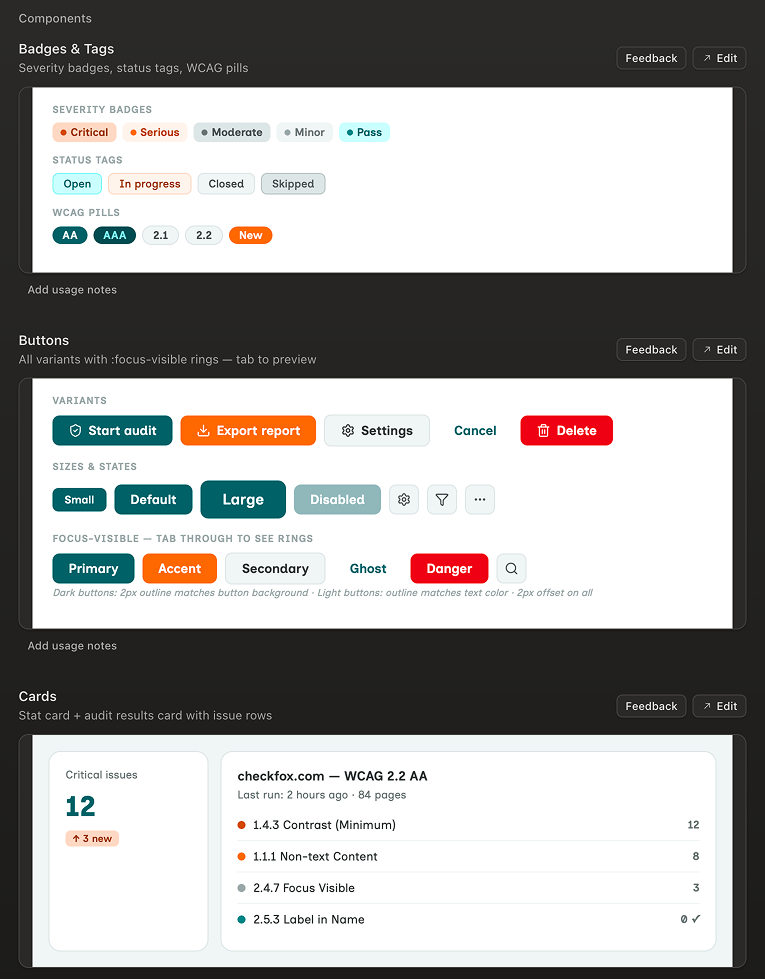
- Button variants: plain, ghost, light, plus their color variations
- Full color palette (name each color, don't just paste hex codes)
- Existing logos and icons used for your branding
- Typography hierarchy and any specific fonts, including fallback rules
- Spacing rules and grid/layout constraints so Claude doesn't improvise them
- Components you would already have or think about: hero banners, main nav (if any), button-like links in different sizes, heading styles, etc.
You need to work on a system that will work for most of your creation: do the hard system concept work first, then produce landing or concept pages faster, and with consistency as main benefit.
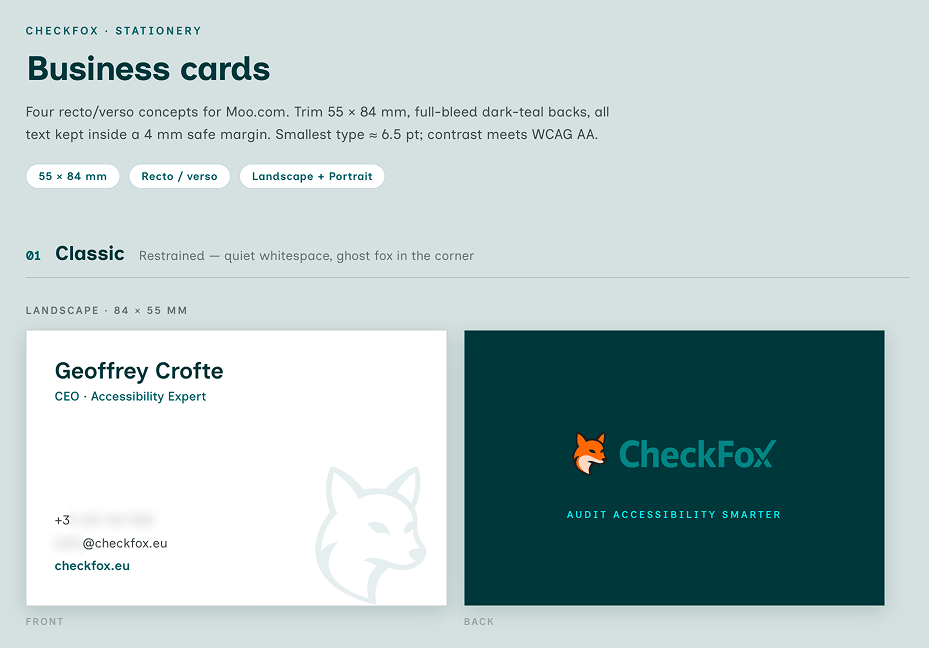
Based on that design system work, you can even draft business cards, presentation concepts, or official document templates.
Step 2: Upload Real Assets, Don't Just Describe Them
Claude Design can ingest existing brand assets directly, Figma files, GitHub repos, or PDFs, rather than relying on you describing them in text.
Uploading your actual logo files, icon set, and any existing style guide anchors Claude to what you already have instead of it inventing a look that clashes with your brand.
Figma files, and SVG exports of your logos are a good start. Use them if you already have something to share with the tool.
Step 3: Bake In Accessibility From the Start
Accessibility isn't a pass you do after the design is "done." Include these rules directly in your initial prompt so Claude treats them as non-negotiable constraints, not afterthoughts. Missing labels, poor contrast, and missing alt text remain the most common failures across live websites, so they deserve explicit callouts every time.
- Respect a proper heading hierarchy (one
<h1>, no skipped levels) - Account for keyboard navigation across all interactive elements, and make sure nothing creates a keyboard trap
- Style a clear visible-focus state: 2px outline, offset by 2px
- Respect color contrast ratios: minimum 4.5 for normal text, 3 for large text, checked against actual background colors, not assumed
- Use plain English and clear, simple language in copy
- Use a line-height of 1.5 on body text (adjust slightly for headings)
- Never use italic font style
- All forms use clear, permanent labels, never placeholders as labels
- All forms include accessible, clearly associated error messages, linked to their field with
aria-describedby - Use
<label>for single inputs, and<fieldset>+<legend>for grouped inputs (like radio or checkbox groups, or complex grouped fields) - Every meaningful image needs descriptive alt text; purely decorative images get an empty
alt="" - Every link needs descriptive text, never "click here" or "read more" on its own
- Every button-like element must be a real HTML link (
<a>), not a styled<div>,<span>or<button> - Declare the page language with
<html lang="en">(or the correct locale based on user prompt) - Add a "Skip to main content" link at the top of the page for keyboard users
- Content must stay readable and usable at 200% zoom, without breaking layout
- Any video content needs captions or transcript
- Use user preference
prefers-reduced-motionto limit animations
This won't fix all the accessibility issues, but it'll provide the AI with a clear baseline.
Step 4: Use a Structured Prompt Formula
Experts using Claude Design consistently point to a 4-part prompt formula that outperforms a single freeform request: goal, layout, content, and audience. State what the page is for, how sections should be ordered, what content goes in each section, and who it's for. This gives Claude the same brief a human designer would expect, rather than letting it infer intent.
- Goal: what the page or component needs to achieve
- Layout: exact section order (hero, trust bar, features, pricing, FAQ, etc.)
- Content: actual copy constraints, like headline length or number of features listed
- Audience: who's reading this, since tone and density change accordingly
Of course, for ideation prompts, feel free to give more freedom to the AI by telling it precisely what you are trying to achieve.
Step 5: Iterate With Feedback, Not Just One Shot
Treat the first output as a draft, not a final. A tight loop of screenshots, inline comments, and asking Claude to self-critique against its own accessibility and design-system rules produces meaningfully better results than a single mega-prompt.
Also watch token usage on longer sessions, since very long back-and-forth threads can cause Claude to drift from earlier design-system instructions.
Remember the time, and tokens, invested in a clear design system, will help you later with consistency and efficiency.
Why Those Instructions Matters
Feeding the design system and prompt formula first gives Claude the visual and structural vocabulary to stay consistent across components instead of improvising a new style every session.
Layering accessibility rules on top closes the gap Claude leaves open by default, since it treats accessibility as optional unless explicitly and repeatedly instructed to include it.
With the design system, prompt formula, and accessibility rules combined, you're addressing the three things Claude gets wrong most consistently: generic visuals from missing constraints, structural drift from one-shot prompting, and inaccessible markup from missing explicit rules. This is the baseline prompt structure to reuse every time you start a new Claude Design session.
Put this into practice with CheckFox
CheckFox helps teams run WCAG, RGAA and RAWeb audits, gather visual evidence, and generate compliant reports and accessibility statements.